Experiment · Android TV
I cleaned up my TV
By your Pohlare · 3 min read
The idea: a clean TV without bloatware
I have a 55-inch Philips running Android TV and wanted to get rid of the bloatware: preinstalled apps, recommendation rows and services that sit there without anyone asking for them. I wanted a clean, simple TV with only what I actually use.
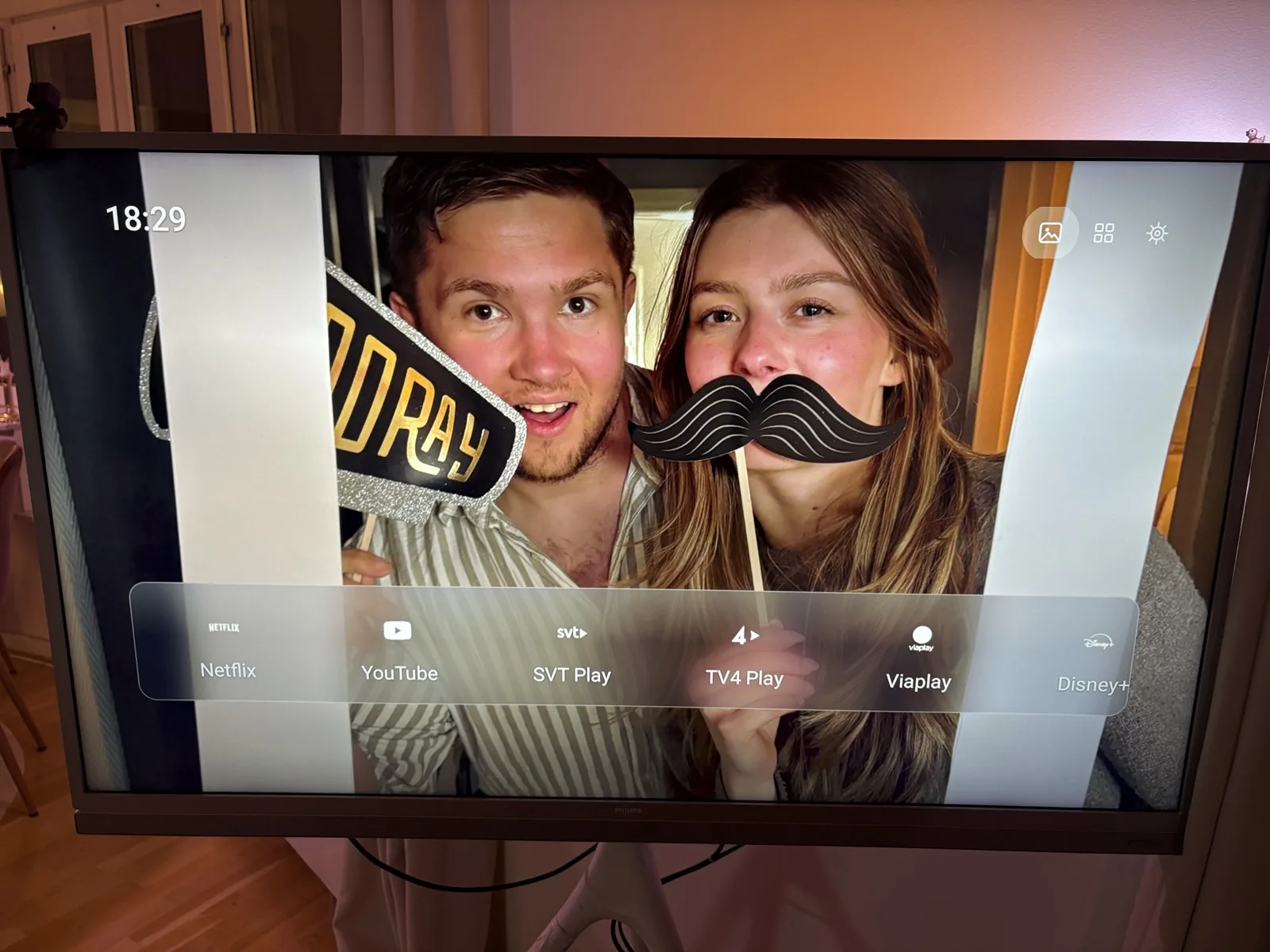
I did it together with Claude, in one afternoon, against a real TV in the room. The inspiration was CleanFrame, a project that gives a Samsung The Frame a calmer home screen. My TV is a Philips running Android TV, so I had to do it my own way.
The plan: a custom home screen and disabled apps
Two things, and neither touches the system itself:
- A custom home screen (launcher) that I install with adb and set as the TV's Home screen.
- Disabling the ad and tracking apps. Disabled, not deleted, so everything can be undone.
How to remove bloatware from an Android TV
- Turn on developer options on the TV (tap the build number seven times under About) and then USB debugging.
- Connect from your computer with adb.
- Build a custom home screen as a small app. Claude helped me, and it works without Android Studio.
- Make it the TV's home screen.
- Disable the apps you don't want.
1. Connect to the TV
adb connect <TV IP address>:55552. Make the app the home screen
adb shell cmd package set-home-activity <your.package>/.MainActivity3. Disable an app (reversible)
adb shell pm disable-user --user 0 <package name>Turn it back on
adb shell pm enable <package name>If the TV only answers "unauthorized": revoke the USB debugging authorizations, switch USB debugging off and on, and unplug the TV from the wall for a while.
A custom home screen on Android TV
It's simple on purpose: a full-screen photo, the clock, a frosted dock with the apps I actually use, and white logos to keep it calm. The background is my own photos. With the remote you move sideways in the dock, press OK to open, and hold OK to change which apps sit there.
Getting rid of bloatware and ads
I went through all the apps on the TV and disabled ads, tracking, demo modes and preinstalled apps I never use. Everything I disabled was written down, so I can turn it back on. I left the system parts alone: the tuner, inputs, remote control and Ambilight.
Before you try it yourself
Varning
Only do this on your own TV. Disable apps instead of uninstalling them, don't run commands you don't understand, and never run adb reboot bootloader on a Philips with this platform. Owners have reported that the TV can soft-brick.
This applies to a Philips running Android TV 8.0. Other TVs have different app names, so start by only reading what is installed.
Inspiration
- CleanFrame – The Samsung app that inspired the look.
- TV Detox – The Android model for the home screen and disabling apps.
- yath/tpm171e – Notes on the Philips platform.